This article should serve as a guide for viewing your server’s backups and storage vault quotas.
-
To begin, you’ll need to log in to the billing control panel. Below is our Billing Control Panel URL.
Billing Control Panel: https://billing.xbytecloud.com/
-
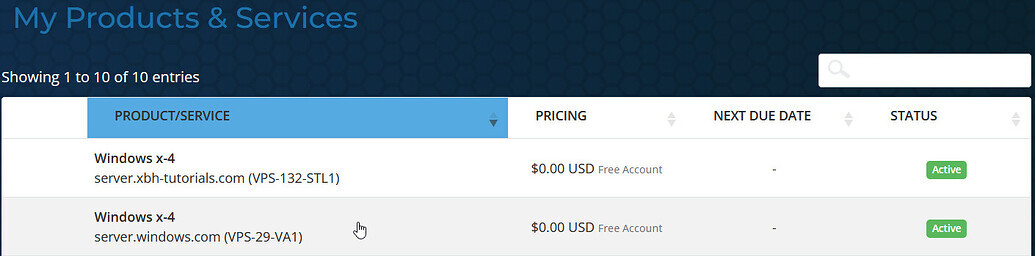
Select “My Services” from the dashboard, once logged in.
-
Click on the VPS you’re trying to find information for.
-
This will default to the Server Information. Select the Backups tab, and you’ll be able to see a list of your current backups, as well as the total amount of space your backups consume.

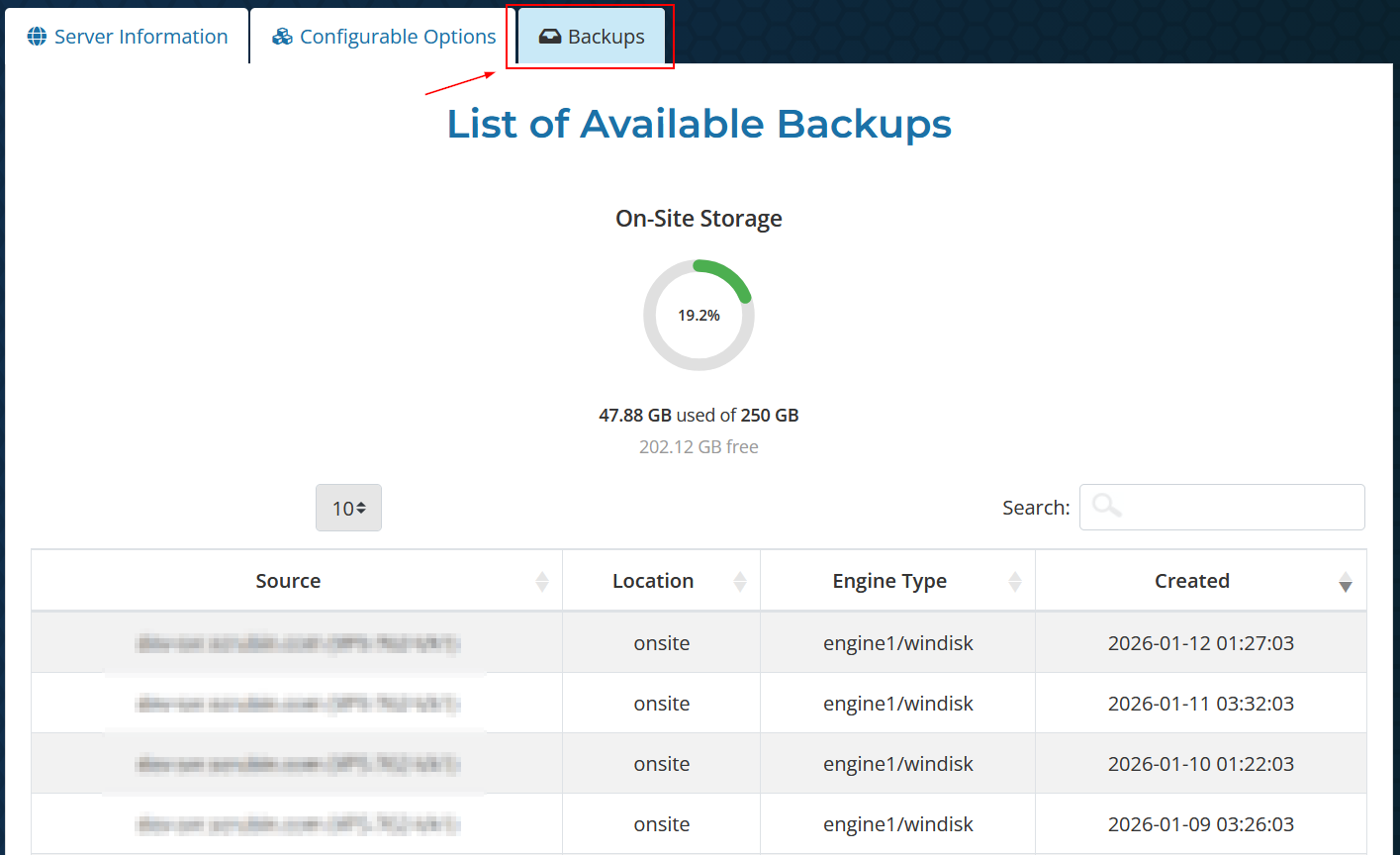
- Source: The name of your server that is tied to the backups.
- Location: “onsite” is your onsite backups. If you have “offsite” backups, then you’ll see “offsite” listed as well.
- Engine Type: The type of backup. “engine1/windisk” is the default type of backup for Windows servers.
- Created: The date that the backup was taken.
Conclusion
That’s it! You should now know how to review your server’s backups. If you have any questions or would like to restore file(s) from a backup, then don’t hesitate to reach out to your team of engineers.